 broxme
 Add to Chrome
  Add to Firefox
 Ad blocking
Filter intrusive ads and pop-ups, and clean up unwanted page elements.
 iShieldBROWSER PROTECTION
Filter unwanted ads and trackers. Help block harmful sites.
Give you more control over what you see online.
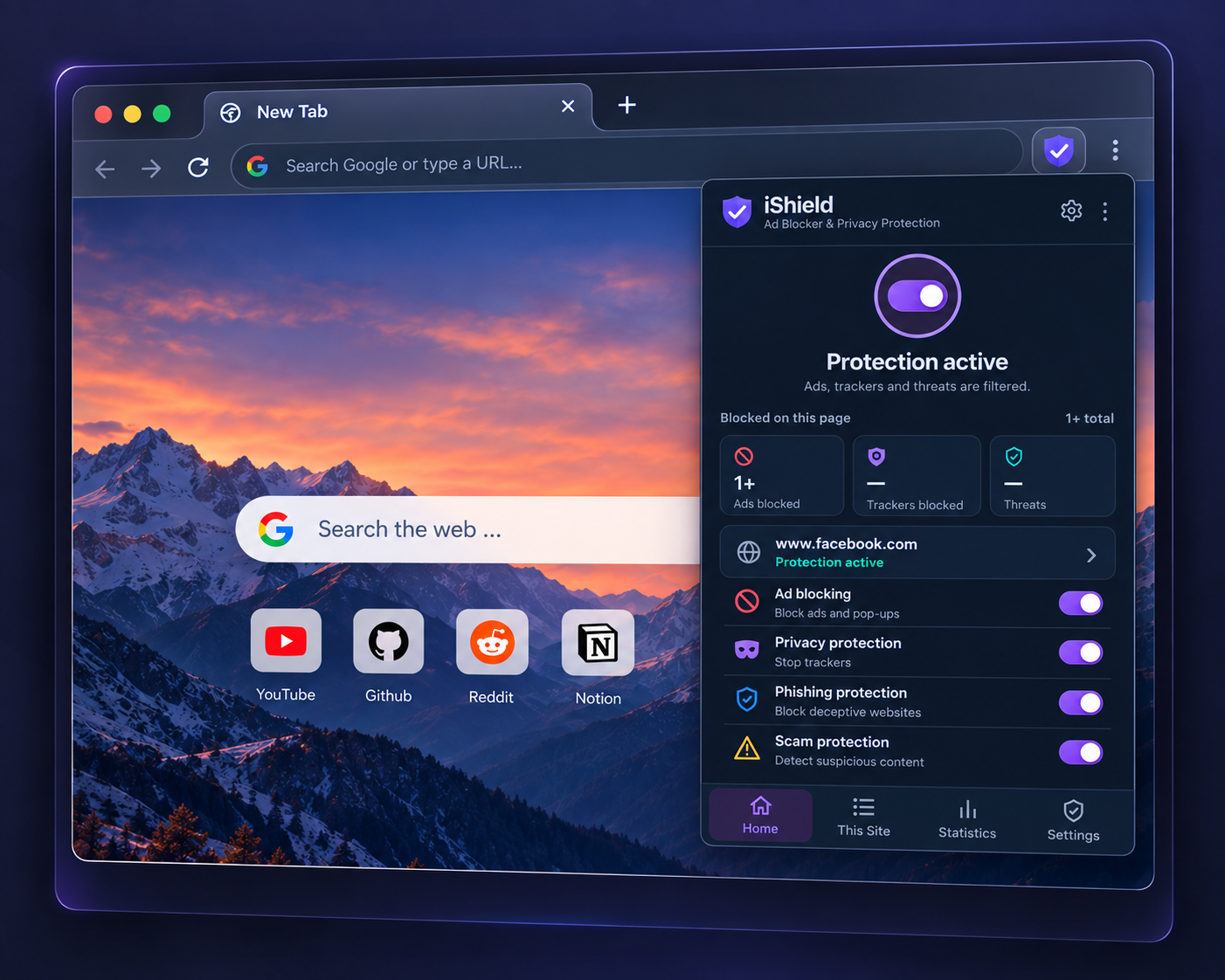
Focused features for safer browsing, with controls you can understand and change.
Filter intrusive ads and pop-ups, and clean up unwanted page elements.
Filter tracking requests and adjust available privacy protections.
Help block deceptive destinations using enabled protection rules.
Add a layer of protection against known harmful sites and suspicious content.
Manage filter lists, custom rules, and allowed websites from one place.
Review supported protection counts and use the data controls to clear or reset activity.
A useful tool should let you change your mind. Manage allowed websites, create rules, adjust appearance, and review locally stored activity from the extension settings.
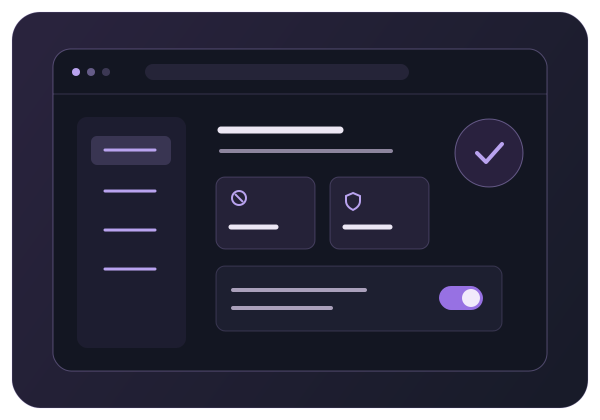
The popup keeps protection status and current-page activity close at hand. Move between Home, This Site, Statistics, and Settings without searching through unnecessary menus. Light and dark appearance choices fit the way you browse.
Feature availability and recorded activity depend on your browser and release.
Start with the official extension, choose your settings, and browse with your protection in place.
Install from the official Chrome Web Store or Firefox Add-ons listing. Choose the version for your browser.
Choose your filters, protection features, appearance, and any websites you want to allow.
Review supported page activity, change exceptions, and adjust protection whenever you need.
Ordinary filtering runs on your device, with no iShield account required.
Read the complete product privacy notice ↗Preferences, exceptions, and supported activity records stay in browser extension storage.
Pause protection on a site, remove an exception, revoke optional permissions, or reset locally stored data.
Protection updates use network requests. Signed filter updates retrieve protection data; ordinary browsing records are not uploaded to Broxme.
The project includes Chromium and Firefox extensions. Available features depend on the distributed release and the browser capabilities it supports.
Chrome and other compatible Chromium-based browsers apply supported network filtering through browser-enforced rules. Check the Chrome Web Store listing for release compatibility.
The Firefox version uses its own browser integration. Protection, permissions, and activity detail may differ from the Chromium release.
Website access enables filtering and page cleanup. Optional rule-match permissions provide additional activity detail where the browser allows it.
Activity describes the protection events iShield can record. A page total can include multiple categories; an individual ad or tracker tile shows its own category.
Check that protection and the relevant layers are enabled. Inspect allowed websites and exclusions if filtering behaves differently on one site.
After changing protection, reload the page to let requests and page checks run again. Websites may keep already-loaded content until refreshed.
If the issue continues, send your browser, extension version, website URL, and steps to reproduce it. Blur private details in screenshots.
iShield filters ads and tracking requests and helps protect against phishing, scams, and malware using enabled rules. No extension can detect every threat or block every unwanted element.
No iShield account is required for ordinary local protection. You can manage filters, website exceptions, and local settings directly in the extension.
Yes. Use the site protection controls and manage allowed websites or exclusions in Settings. You can remove an exception to restore filtering.
The ordinary protection workflow does not upload browsing history or the local blocked-domain ledger to us. Filter-update requests involve normal network metadata, described in the privacy notice. See the product privacy notice.
Yes. Appearance settings let you choose the supported theme. Choose light, dark, or the supported system appearance in Settings.
Available detail depends on browser APIs, optional permissions, release type, and refresh timing. Counters describe recorded activity rather than a guarantee that every request was measured.
Open Settings → Activity & Data and use the available clear or full-reset controls. A full reset restores defaults and removes locally stored extension data before recreating the state needed to operate.
Get iShield from the Chrome Web Store or Firefox Add-ons. Use the listing for your browser to install and review its permissions.