A browser extension can save time, make a page easier to use, or add a feature you value. It also becomes software with access inside a place where you read messages, use accounts, and submit information. Reviewing extensions is not about assuming every tool is dangerous. It is about keeping the ones whose purpose and access you can explain. A shorter, understood list is easier to maintain than a browser full of forgotten experiments.
Start with the job you want the tool to do
Before installing an extension, write down what you need it for. A specific task makes the evaluation easier: format a page, filter unwanted content, manage a defined workflow, or support an accessibility need. “Improve my browser” is too broad to tell you whether the requested access fits the job.
Check whether the browser or service already offers a suitable feature. Adding another tool is not automatically wrong, but it creates another publisher, update path, settings page, and support relationship to understand. A built-in feature may be sufficient; a specialized extension may still be worth choosing when its value is clear.
If you are already reorganizing your setup, begin with a browser privacy tune-up. That gives you a baseline before a new tool changes the environment. It is much easier to assess an extension when you know which behavior belongs to the browser and which behavior you are asking the extension to add.
Know which publisher you are choosing
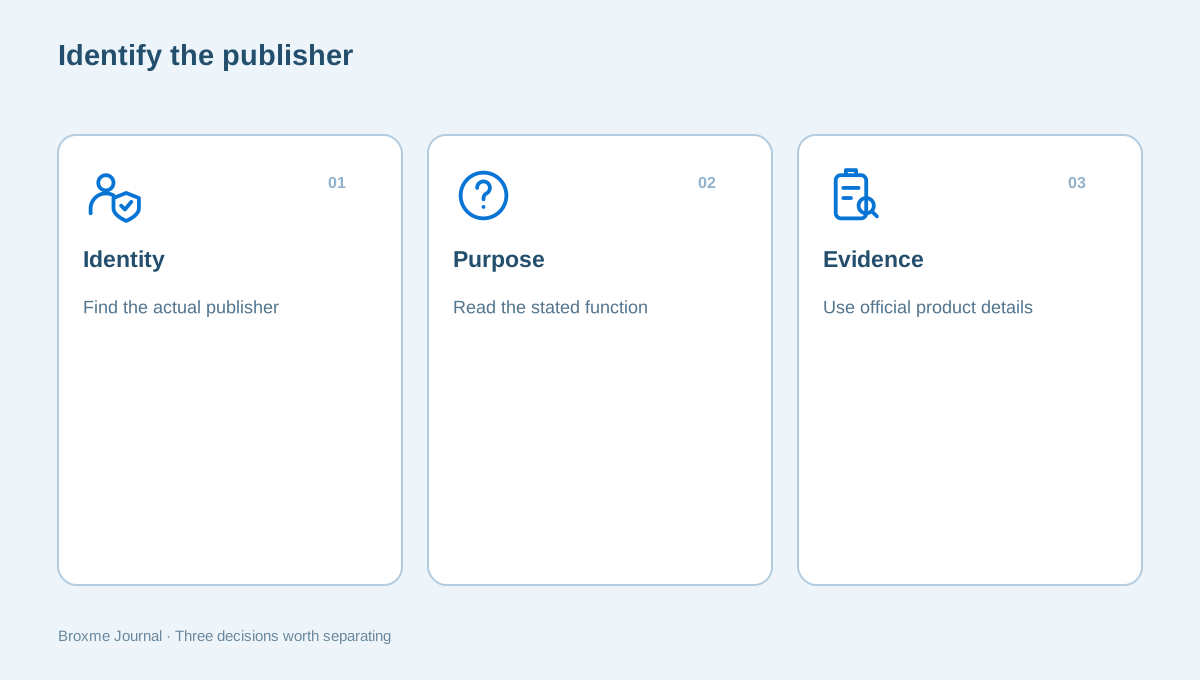
Use the browser’s official store route and read the publisher information. A familiar product name or similar icon is not enough to establish identity. Look for a support site and a coherent explanation of what the extension does. Be particularly cautious when an unexpected message is pressuring you to install a tool as the first step in getting help.
Mozilla’s extension safety guidance offers useful questions for evaluating a listing. Keep the decision grounded in the evidence available rather than treating any single signal as a guarantee. Reviews, a polished page, and an appealing description do not eliminate the need to understand the function and access.
For a work browser, ask which publishers and tools the organization permits. An extension that fits a personal task may still be inappropriate for a device handling company information. If the tool is essential, make the case through the organization’s process rather than trying a similarly named alternative to avoid a restriction.
Read the requested authority in plain language
Permission language describes capabilities the browser may grant, not a complete narrative of how every piece of data is handled. A tool can need substantial access to perform its stated function. That does not mean you should ignore the request, and it does not automatically establish malicious intent. The useful task is to connect the capability to the job.
Firefox’s permission-message explanation can help you interpret its prompts. Read only as much technical detail as you need to make an informed decision, and ask the publisher when the connection between the function and access remains unclear.
For example, a tool that modifies page content needs a different relationship with websites from a simple shortcut. Do not assume every category should request identical permissions. Equally, do not accept an unexplained request because another legitimate tool once asked for something similar. The publisher should be able to explain the purpose in terms relevant to the feature.
Look at where the access applies
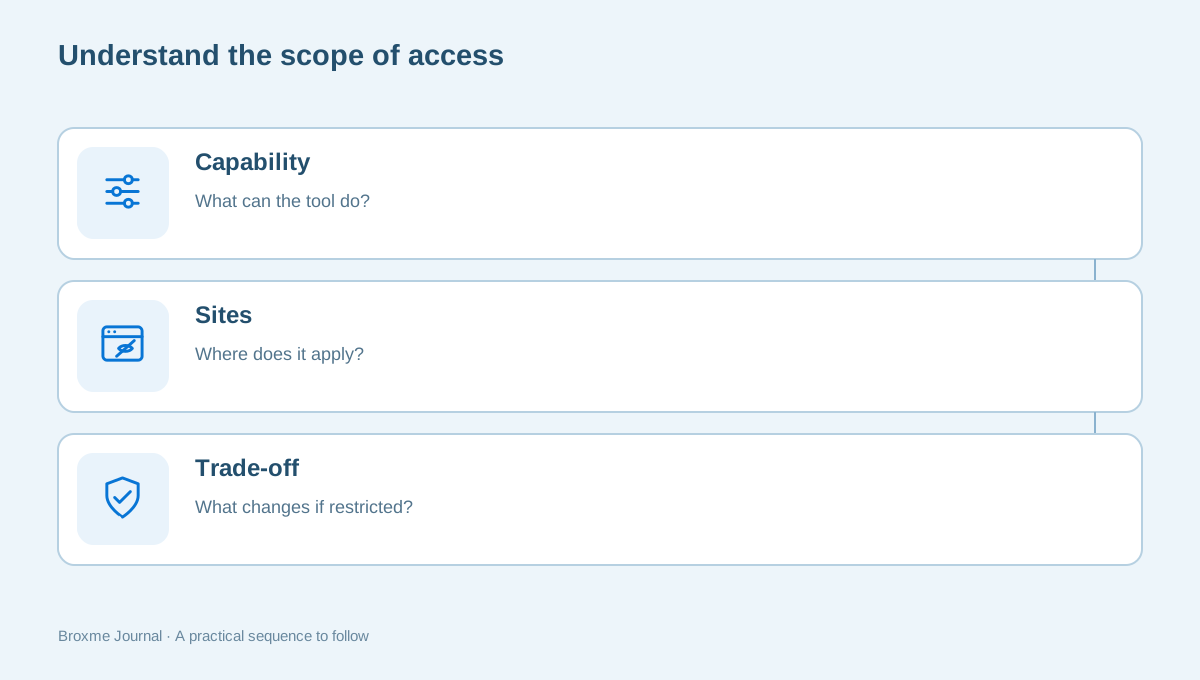
Browser controls may let you review or adjust site access for an extension. The available options depend on the browser, the extension, and how its functionality is implemented. Read the current details instead of assuming a control you saw on another computer is available in exactly the same form.
Chrome’s extension management instructions describe installation and management in that browser. Use the settings to understand which access is granted and what changing it would affect. Restricting access can also prevent a feature from doing the job you installed it for; that trade-off should be understood, not hidden.
Review website permissions separately. Camera, location, and notification choices belong to a related but different list of decisions. Our website permission guide helps distinguish them. Keeping the two reviews separate avoids the impression that removing one site’s camera access has changed an extension’s authority across the browser.
Ask what happens to the information involved
Access and information handling are connected but not identical questions. An extension may process information locally, communicate with a service, or rely on an account. Read the privacy explanation for the current product and check whether it answers the questions that matter to your intended use.
You may want to know whether an account is required, what connections support the feature, and where activity records are kept. Avoid filling gaps with optimistic assumptions. If the explanation is unclear, consider asking a specific question or choosing not to install until you have a usable answer.
For example, iShield has a defined browser-filtering purpose and product information to review. Evaluate it by the same standard you would apply to another tool: function, permissions, and fit for your setup. A product page is a starting point for that decision, not a reason to stop reading the store’s current details.
Be careful with overlapping tools
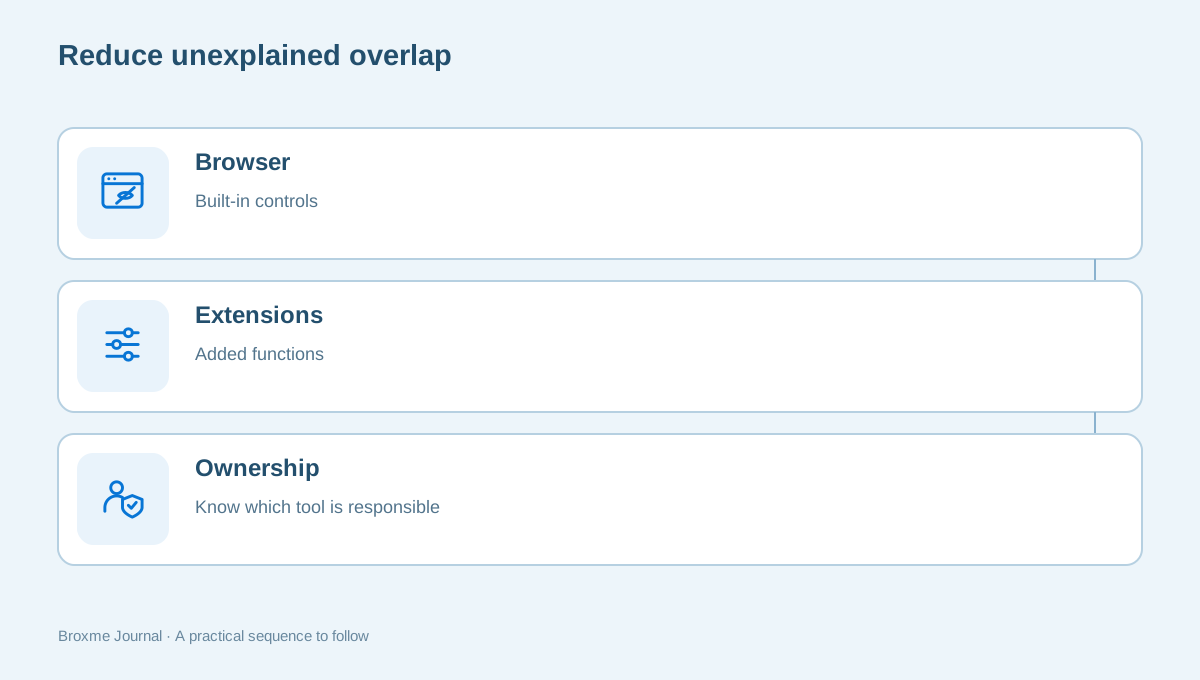
Several extensions may appear to offer the same kind of protection or convenience. More items can create more settings and exceptions without giving you a clearer understanding of the result. If a page stops working, you may be unable to tell which tool changed it or which exception restored it.
Choose a coherent setup you can explain. Before adding a new tool, note whether an existing extension or browser feature already handles the task. If you decide to replace something, plan how to verify the change instead of leaving both active indefinitely because removing either feels uncertain.
Tracking controls deserve particular care because cookie settings, site choices, and extensions can all affect a page. Review cookies and tracking choices to separate their roles. A page that behaves differently is a troubleshooting question, not automatic proof that one tool is wrong or that every privacy feature should be disabled.
An installation decision is not a permanent review
The purpose you had for a tool can change. A project ends, an employer replaces a system, or an accessibility need is served differently. Revisit installed items when your workflow changes instead of assuming that an extension still belongs because you once had a reason for it.
Pay attention to new permission requests and unexpected behavior. Read what changed and consider whether the request still fits the function. A rushed approval may leave you with access you would have questioned during the original installation. If you cannot explain the change, pause and use the publisher’s official support route.
For a technical perspective on how permissions are declared, Microsoft’s extension permission documentation describes the developer-side model. You do not need to inspect code to make an ordinary user decision; the point is to recognize that permission declarations and warnings have a defined role rather than treating them as decorative installation text.
Remove tools that no longer have a job
Work through the installed list in small groups. Recognize the publisher, name the task, and decide whether you still need it. Do not keep an extension simply because removal might require remembering why it was installed. If uncertainty remains, investigate the item before using sensitive accounts through that setup.
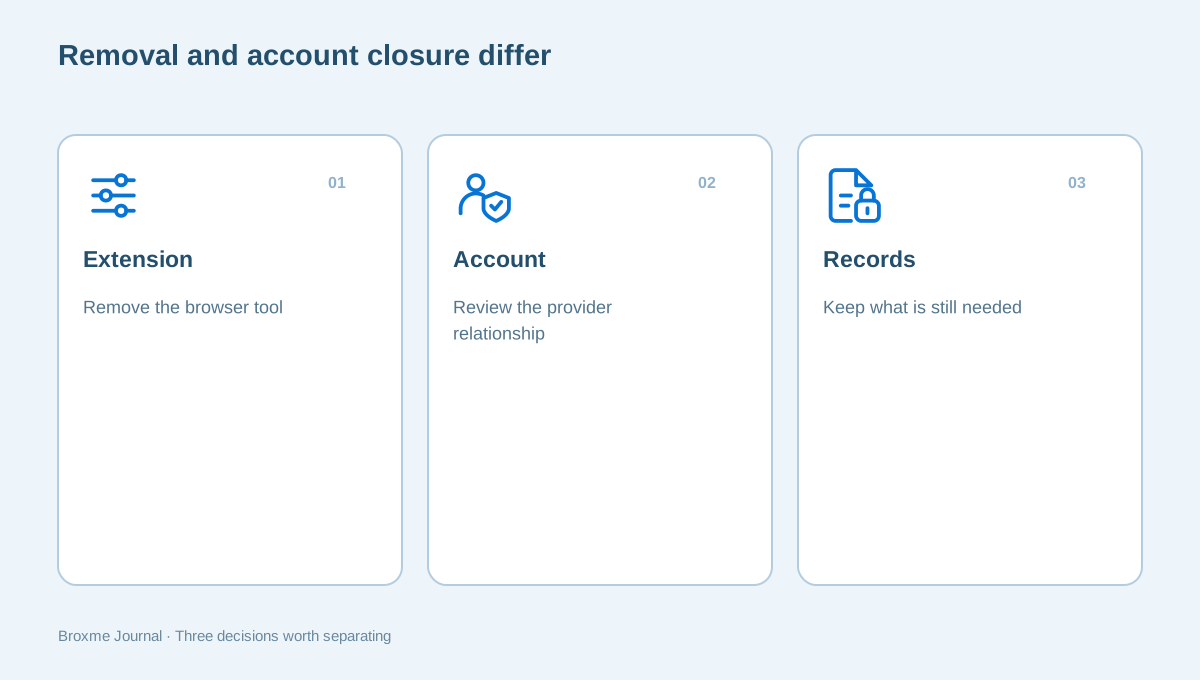
Before removing a tool, check whether it stores settings or information you need. A password-related extension, for example, should not be treated like a cosmetic theme. Confirm that you understand the underlying service and recovery method. The password manager guide can help keep that account work separate from a general cleanup.
If an extension is connected to an online account, uninstalling it may not close that account or end a subscription. Read the provider’s process and use the account closure checklist when you intend to stop using the service itself. Software removal and account closure are different outcomes.
A small business browser needs clear ownership
Imagine an office in Wisconsin using a browser extension to capture information from a scheduling system. A second extension is added to speed up the same task, and a third changes how forms appear. Months later, an employee cannot tell which one is necessary. The first useful action is to identify the workflow, not purchase another tool.
Ask the person responsible for the scheduling system which extension is supported and what the task requires. Record the publisher, intended function, and owner. Test changes through the organization’s process, using appropriate non-sensitive examples. Do not upload customer records into a new extension just to find out whether it makes the page easier to use.
Once the setup is understood, remove unnecessary overlap and document any required settings. A new employee should not have to inherit a mystery collection of browser tools. If the review uncovers wider questions about company data handling, a business privacy review can put the extension question in the context of the whole workflow.
The example illustrates an ownership problem, not a claim that every business extension is risky. Useful tools deserve a place when their role is understood. The difficulty comes from access decisions that no longer have a person responsible for explaining them.
Ask for help without handing over the browser
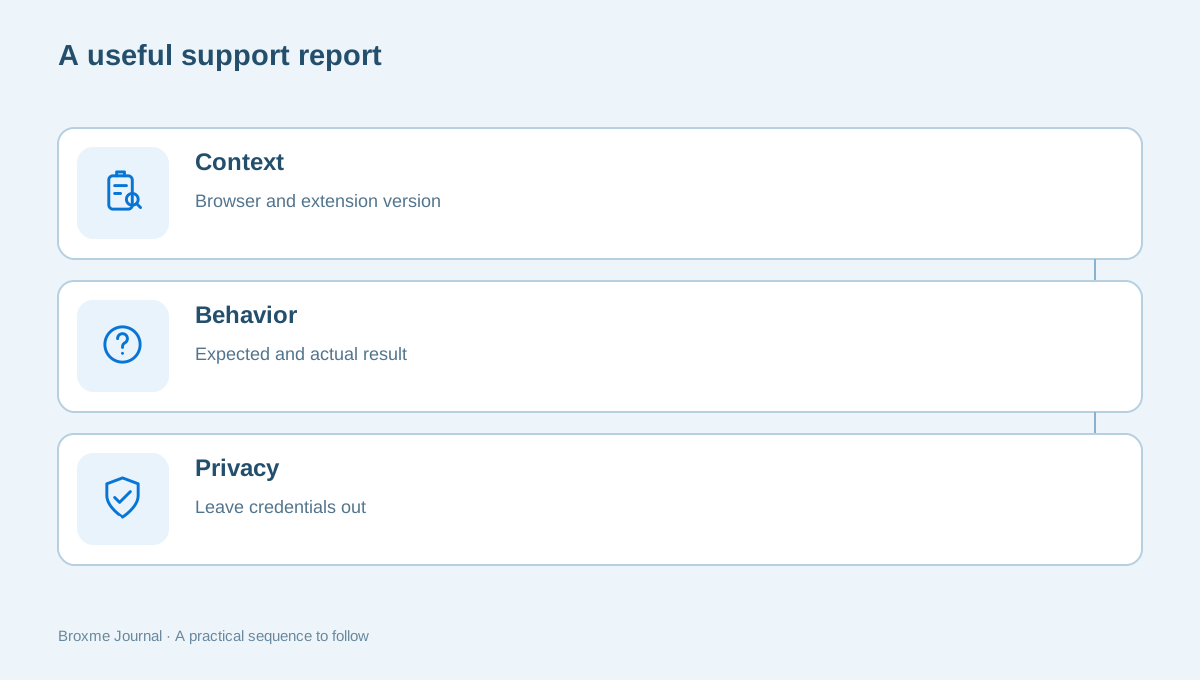
If a tool behaves unexpectedly, record the extension name and version, browser version, affected site, and the action that failed. Describe the expected outcome. A short, precise report is usually more useful than sending a complete browsing history or a folder of screenshots containing account details.
Use the support route listed by the actual publisher. Do not install a remote-control tool merely because an unsolicited message claims it is required to repair the browser. If the contact itself seems questionable, use the unexpected-message checklist before sharing additional information or following instructions.
For Broxme product questions, iShield support describes useful information to include. Keep credentials, recovery codes, and private page content out of the first message. A provider can discuss an appropriate way to gather evidence if it is needed, rather than asking you to expose everything at the start.
Make the decision repeatable
Use the same short questions for the next installation: what job does it do, who supplies it, what access does it request, and what would change if you removed it? Keeping the questions consistent makes the review easier without turning it into a mechanical checklist that ignores the function.
Consider accessibility and the needs of anyone else using the device. Some extensions are central to a person’s ability to read, write, or navigate. Do not remove those casually during a cleanup. Explain the proposed change, confirm how the person uses the feature, and plan an appropriate alternative when needed.
If your concerns require more than a routine review, tracking and exposure protection can help you look at permissions and tools in context. The goal is an understandable browser setup whose components have a purpose. A small collection of useful, explained extensions is easier to maintain than a growing list selected on the strength of promises alone.
For a personal browser, a reasonable review can be brief. Choose three extensions and identify the task each one serves. Open the details, check the publisher, and notice whether a tool has access you did not expect. You do not have to reach a decision immediately about an unfamiliar item. Put it on a specific investigation list rather than making a rushed approval simply to finish the count.
An uncertain decision should have a next action. You might check the publisher’s explanation, ask the administrator who deployed the tool, or test whether a supported browser feature already meets the need. Avoid replacing uncertainty with a new installation recommended by an unrelated advertisement. Adding another party before you understand the first one usually makes the setup more difficult to explain.
When you keep a tool, consider how you would notice a problem. Know where its settings live and how to reach its genuine support channel. Keep a record of important exceptions without including private page content. If a setting was changed during troubleshooting, revisit whether it is still necessary once the immediate problem has been understood.
Finally, be honest about what this review establishes. You can confirm a stated function, examine permissions, and reduce forgotten access. An ordinary user review is not a full code audit or a guarantee about every future update. That limit does not make the work useless. It gives you a realistic basis for choosing software and recognizing when a change deserves another look.
Finish with a record of the decisions that matter. Note the tools you kept, their purpose, and any support or administrative owner. Revisit that record when a project ends or a feature changes. This leaves you with a practical way to maintain trust in the setup rather than a one-time installation decision you never reconsider.
Sources and further reading
Provider processes can change. Use the current instructions on the official website when making a request or changing an account.

About this guide
Published in the Broxme Journal for readers who want clear explanations of privacy and everyday online security. This guide provides general information; your circumstances determine the appropriate next step.
About Broxme