You do not need to move every password you have ever used into a new tool tonight. A useful first week with a password manager is smaller than that: understand how the manager works, protect access to it, and move a few important accounts without losing track of what changed.
The right setup is one you can use on your own devices and recover when an ordinary problem occurs. A lost phone, an expired work account, or a replacement laptop should be part of the planning conversation. This guide focuses on that practical start rather than comparing products or promising that a single app resolves every account risk.
Choose for your actual devices and responsibilities
List the places where you sign in: a personal phone, a home computer, perhaps a shared tablet. Check whether the manager supports the browsers and operating systems you use. Read the provider’s current documentation rather than choosing only from an app-store screenshot or a list of features you may never need.
Keep work requirements separate. An employer may provide a manager or restrict where company credentials can be stored. Ask before importing work records into a personal vault. A tool suitable for household accounts is not automatically an approved place for customer systems or administrative access.
Write down the practical questions that would prevent you from using the tool comfortably. Can you reach it on your main devices? What is its recovery process? How does sharing work, if you need it? Those questions are more useful than assuming the most elaborate subscription is the safest choice for everyone. Review business system ownership separately if you are making the decision for a company.
Learn the sign-in and recovery arrangement first
Before saving your first credential, understand how you open the manager and what the provider can do if you lose access. Some arrangements rely on information only you hold. Others offer recovery features with their own requirements. Do not assume that customer support can bypass the system simply because you can prove you purchased a subscription.
The Canadian Centre for Cyber Security’s password-manager guidance provides a useful official overview of protection and recovery considerations. Use the specific instructions from the provider you choose for actual setup. A general guide is not a substitute for understanding the recovery route attached to your particular account.
If the manager provides an emergency document, recovery key, or similar setup material, decide where it will live before dismissing the setup screen. Keep it under your control and separate from casual shared files. Avoid placing the only usable recovery material inside the vault it is supposed to recover.
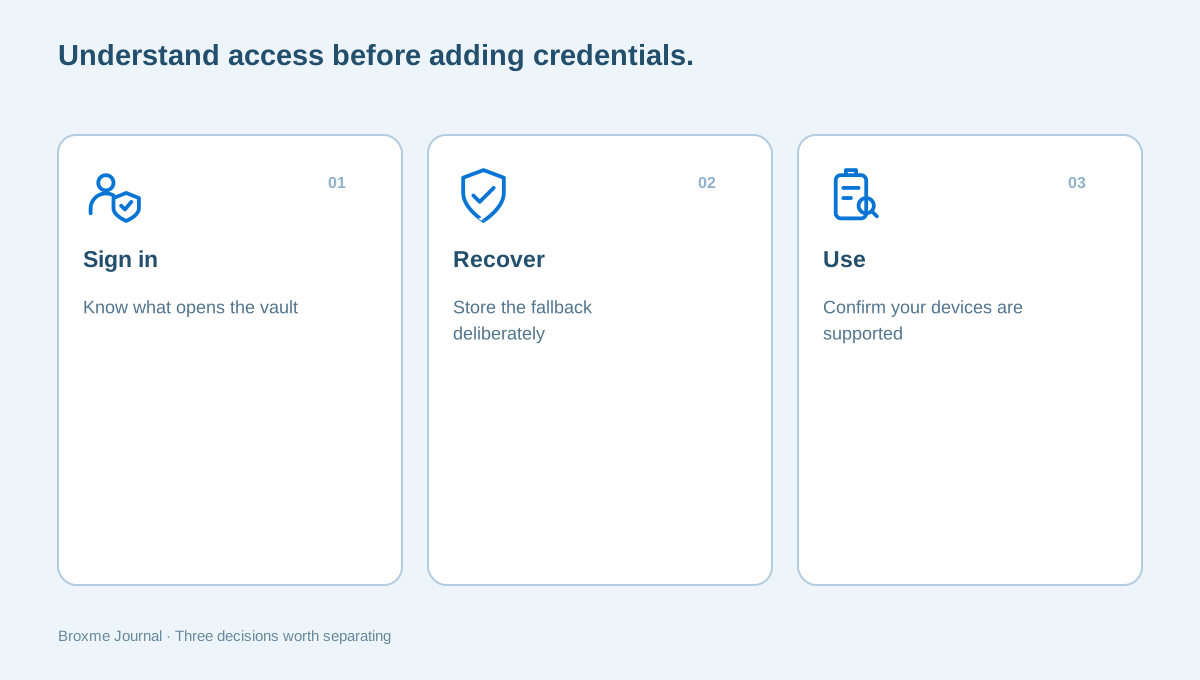
Protect the manager’s own account
The manager deserves a distinct sign-in arrangement. Do not reuse a familiar password from email, shopping, or an old subscription. If the provider supports an additional verification method, review how to set it up and how you would recover access if the device carrying that method were unavailable.
NIST’s digital identity FAQ discusses password managers and authentication practices. For a personal setup, the practical takeaway is to avoid treating the vault as just another disposable account. Protect its access and recovery information deliberately, because you are placing several account credentials behind it.
Read the second-factor recovery guide before relying on an app that exists only on one phone. If you choose a passkey for the manager, work through the device and recovery questions too. Adding a newer sign-in method does not mean you can stop thinking about the account behind it.
Start with three accounts that matter
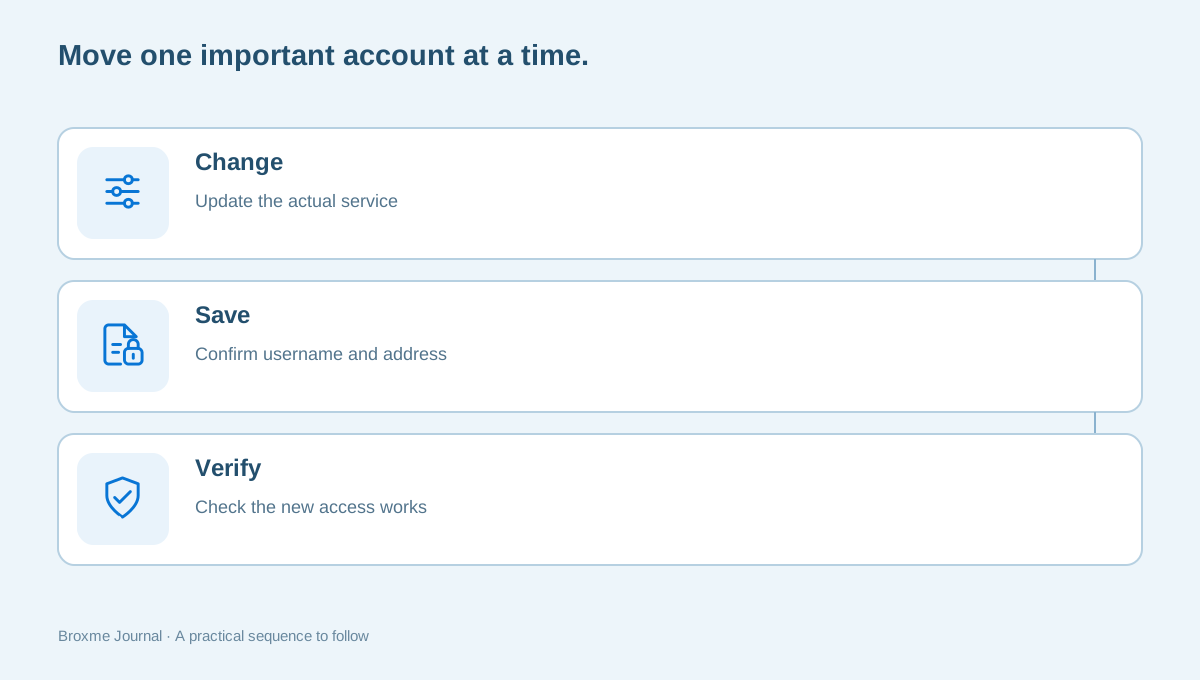
Choose a small first group. Your main email and two frequently used services make a reasonable beginning. Know which account you are updating, open the service directly, and make sure you can reach its current security settings. Do not change several passwords in different tabs and plan to sort out the records afterward.
For each account, confirm the correct username and website address. Let the manager create a unique credential where that is supported, save it, and verify the change through the service’s normal process. Stay alert to the possibility of multiple accounts under similar addresses. A record that looks tidy is not useful if it belongs to the wrong account.
The CISA password tip sheet supports the use of strong, unique passwords and a manager to handle them. Your own migration plan should be slower and more specific than a slogan: change one account, verify it, and only then move on. Start with the inbox that connects other accounts if you are unsure which service deserves attention first.
Treat autofill as a convenience to understand
A manager may offer browser or app integration so that it can fill credentials for you. Review the requested permissions and the provider’s explanation of how the feature works. Install the integration through a route you trust, and confirm that its publisher matches the manager you intend to use.
Watch what the manager identifies as the current website. If it does not offer a record you expected, do not immediately copy the password into whatever page is open. Check the address and the account you are trying to reach. An unexpected sign-in prompt deserves verification even when a password manager is part of your routine.
Our browser extension review covers the wider permission question. A useful extension needs a clear purpose, a known source, and access that you understand. The manager’s browser tool should not become an excuse to ignore every other extension installed alongside it. Keep the browser setup manageable enough that you recognize changes.
Import carefully rather than celebrating a large number
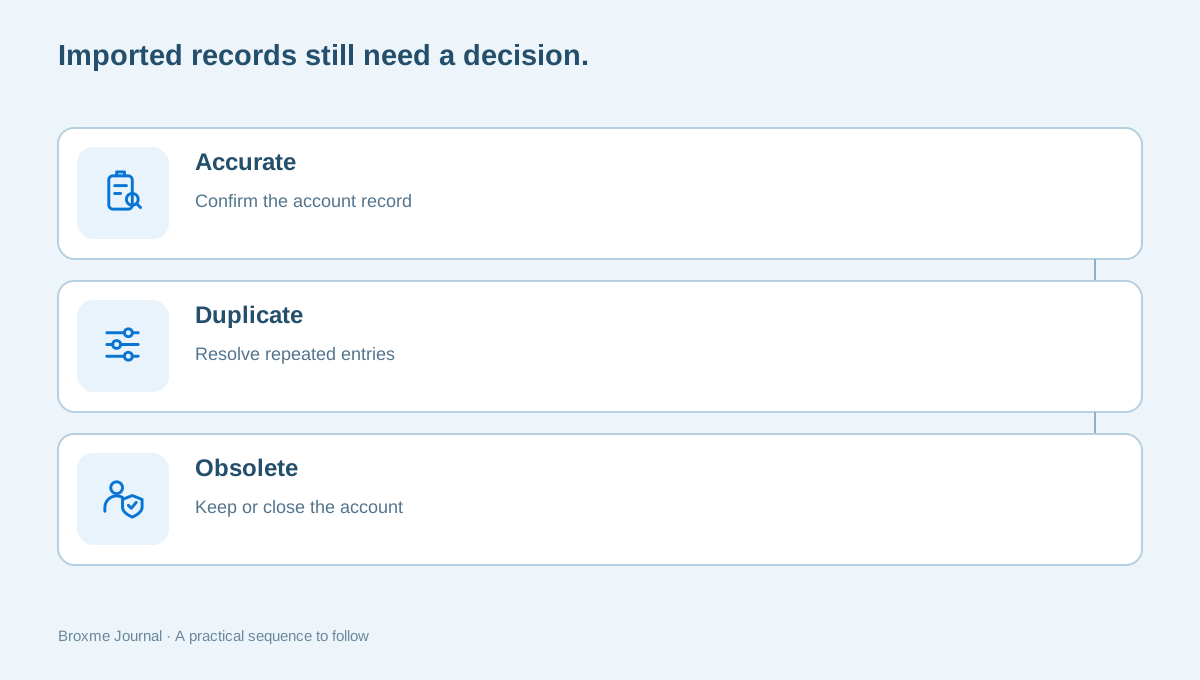
An import can save typing, but it can also bring in duplicate, outdated, or incomplete records. Treat the imported list as something to review. A high record count does not tell you how many accounts are still active, whether passwords are unique, or which entries are accurate.
If an export file is needed to move data between tools, understand where that file is saved and how sensitive it is. Follow the providers’ instructions for handling it, and do not leave copies in a shared folder or attach them to an ordinary support inquiry. Make a deliberate plan for the temporary file instead of forgetting it in Downloads.
Keep the original system available until you have checked important records and understand the transition. Do not delete your old store of credentials simply because an import completed without an error message. Verify actual access to a small set of accounts. Then decide which duplicates to remove and which old entries need an account-closure decision.
Give obsolete accounts a decision
You may discover accounts you have not used in years. Do not assume that importing their credentials is the end of the task. Ask whether you still need the service, whether it holds records you should keep, and whether it is connected to a subscription or another account’s sign-in route.
The old-account closure checklist helps separate canceling a subscription, removing an app, and closing the actual account. If you keep the account, record its purpose and review recovery information. If you close it, retain only the evidence you reasonably need instead of keeping a cluttered credential record forever.
A migration can also reveal reused credentials. Prioritize changes rather than trying to resolve every duplicate immediately. Main email, important financial services, and accounts used for recovery generally deserve earlier attention than an abandoned discussion forum. Your list should reflect your circumstances, not an arbitrary order produced by the import.
Share only what needs to be shared
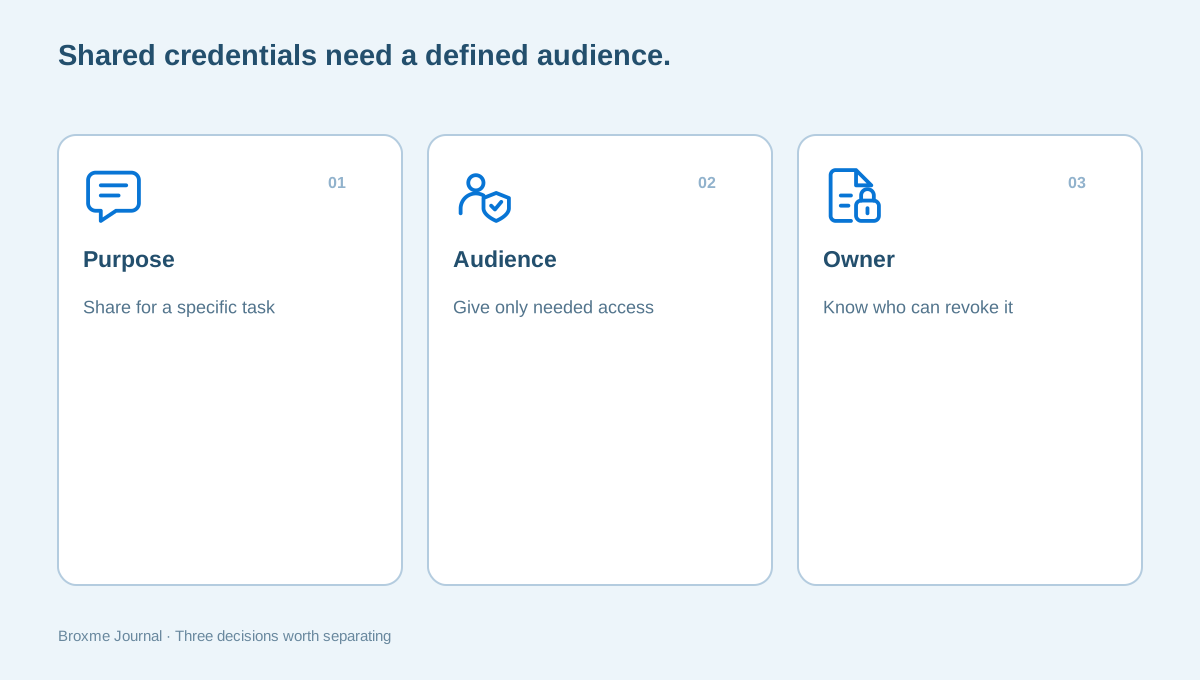
Households sometimes need shared access to a subscription or an administrative account. Use the manager’s supported sharing arrangement if it fits the need, and read what the recipient can view or change. Sending a screenshot of a password by text is not the same as establishing a controlled sharing process.
Keep personal and shared records clearly separated. A family member who needs a utility login does not necessarily need access to your personal email, recovery codes, or every saved account. Decide who should retain access when a device changes or a household arrangement ends.
The same principle matters at work, where the owner of a shared credential should be identifiable. Review how shared access gets an audience and an owner before treating a shared vault as an unlimited team folder. The tool can support a process, but it does not decide who is authorized to receive information.
Practice a routine before you depend on it everywhere
For a few days, use the manager with the small group of accounts you moved. Notice where the process is awkward. Perhaps you need a browser integration on a second computer, or the phone locks the manager sooner than expected. Resolve those questions while the setup is still easy to understand.
An ordinary practice session can be simple: open the manager, find a record, sign in to its correct service, and confirm that you can identify the relevant recovery instructions. You do not need to trigger account recovery or erase a device to prove you have a plan. Avoid experiments that could lock you out.
The FBI’s online-safety guidance for adults includes password-manager and authentication habits among broader precautions. A manager works best alongside those habits, not instead of them. Our everyday security guide can help you choose a few complementary tasks without turning the first week into a complete overhaul.
Finish the week with a sustainable plan
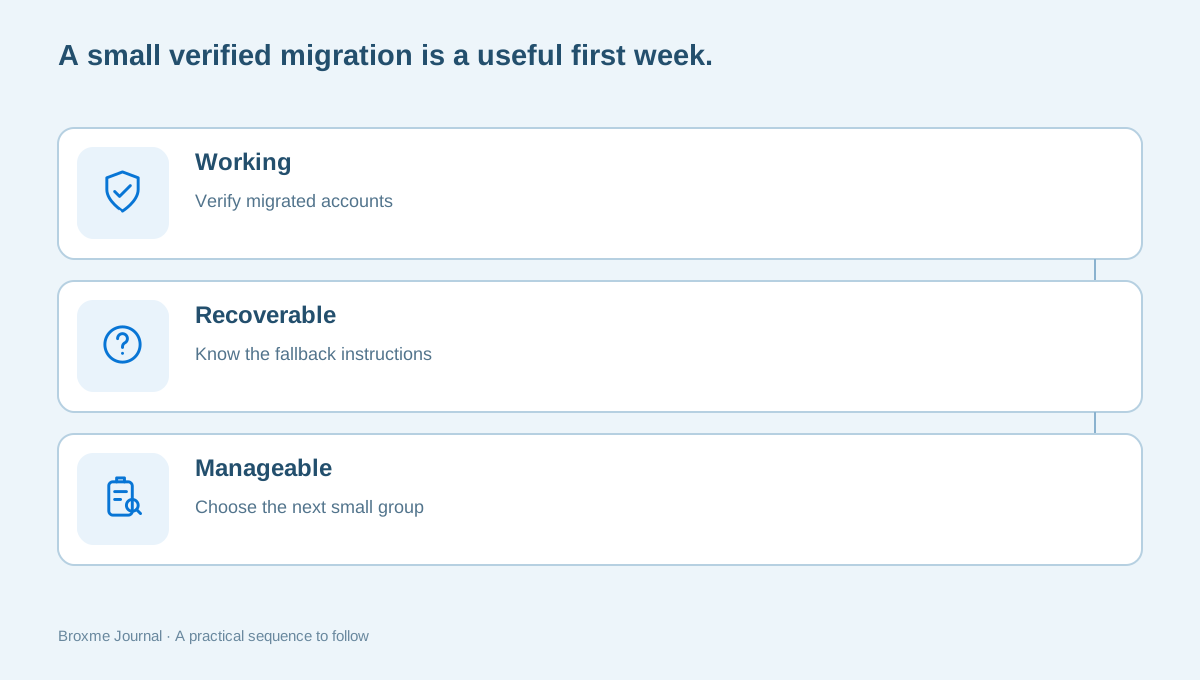
By the end of the first week, you should know how to open the manager, where its recovery material is kept, and which accounts have been moved successfully. A small verified group is a better result than a huge import whose accuracy and recovery arrangements remain uncertain.
Choose the next group of accounts based on importance and your available time. Keep changes together: update the service, save the record, verify access, then move on. If you find a warning or suspected breach along the way, give it a separate task rather than assuming the migration itself resolves the issue. The breach-notice guide explains that distinction.
If you want help organizing difficult account dependencies, discuss a Digital Identity & Account Security review. Describe the providers and the decisions you are trying to make. Do not send the vault export or your main password with an inquiry. The useful starting point is the problem, not a collection of credentials.
Here is an illustrative schedule that leaves room for learning. On the first evening, choose the tool and read its access and recovery instructions. On the second, establish its own sign-in protection and decide where recovery material belongs. On another day, move your primary email and verify the result. Use the remaining sessions for two other accounts and the small practical problems you notice. Nothing requires the sessions to happen on consecutive days.
If you share a computer, add one more check before depending on autofill: who can open the browser profile and the manager on that device? A computer used by several people needs a deliberate arrangement. Do not assume that locking the website account automatically locks the vault, or that leaving the browser window open is harmless because the device is at home. Read the tool’s locking behavior and choose an arrangement you can explain to the other people using the computer.
Travel can reveal a different problem. You might be comfortable opening the manager at home but unsure how to use it when your phone is unavailable or a laptop needs replacement. Plan the access route before traveling, without copying every password into an unprotected note as a convenience. The purpose of planning is to reduce improvisation under pressure, not to create extra duplicates that nobody remembers to secure afterward.
Also separate a manager warning from proof that an account has been accessed. A reused or weak-password warning identifies a condition worth addressing. It does not, by itself, establish who has signed in or what happened inside the service. Open the account’s own security information when you need to investigate access. Keeping those questions distinct helps you respond proportionately rather than making sweeping changes based on a single colored warning.
When asking the manager’s support team for help, describe the feature, device, and error message. A screenshot can be useful after private information is removed. Do not include the contents of a credential record, a vault export, or recovery secrets in an ordinary message. If support asks for a diagnostic file, understand its contents and use the provider’s documented process. You can ask what information is needed without handing over every saved account to explain one problem.
A working setup does not need to look impressive. You may finish with five accounts moved, several old entries marked for review, and a clear understanding of recovery. That is meaningful progress. The next step is to repeat a process that worked, not to rush until the counter of saved records is larger. Keep the account decisions visible and the credentials themselves protected as the routine becomes familiar.
Sources and further reading
Provider processes can change. Use the current instructions on the official website when making a request or changing an account.

About this guide
Published in the Broxme Journal for readers who want clear explanations of privacy and everyday online security. This guide provides general information; your circumstances determine the appropriate next step.
About Broxme