You joined one video appointment months ago. A website asked for your location when you checked a nearby store. Another offered notifications you no longer want. Those small decisions can remain in your browser after the original task is forgotten. Reviewing permissions is a way to give each decision a current purpose. You do not need to distrust every website or turn off every feature. You need to know what access exists, why it is there, and whether you still want it.
A permission is a specific decision, not general trust
When you allow a website to use a feature, you are making a decision about that feature in a particular browser context. It is not a promise that every use of the website is private or that the provider will handle all information exactly as you expect. Keep the scope of the decision clear before relying on it.
Think about a virtual appointment. You may need the camera and microphone for the conversation, but that does not mean the same site needs location access or permission to send notifications. Each request deserves its own purpose. If the purpose is not clear, pause rather than allowing everything to get past the prompt.
Your broader digital footprint includes public posts and information held elsewhere. Website permissions address a different part of that picture. This distinction keeps a useful settings review from becoming an unrealistic promise to control every piece of information connected with your name.
Look at existing access, not only the next prompt
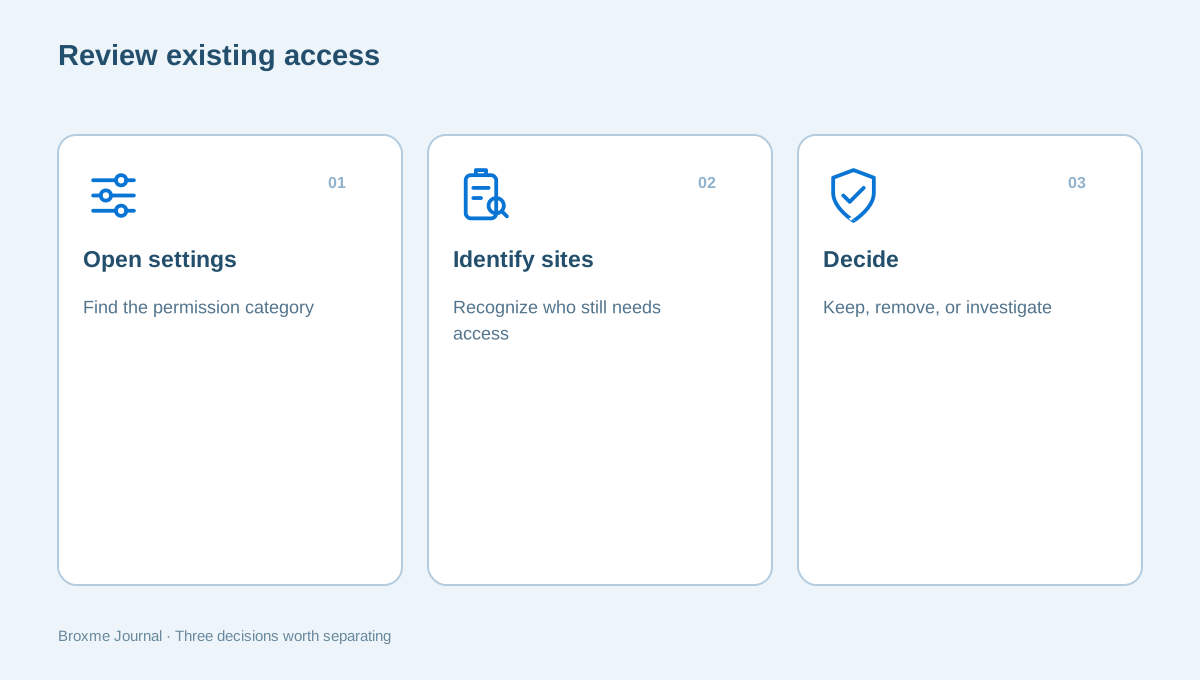
Open the browser’s settings and find the categories for site permissions. Review what is already allowed or blocked. It is easy to focus on new prompts while leaving years of old decisions untouched. Start with a category you understand, such as notifications, rather than trying to interpret the entire settings page at once.
Chrome’s site-permission guidance is a useful reference for the controls in that browser. Use the current instructions because menu names can change. If your settings are managed by work or school, check with the administrator before assuming a control is missing or malfunctioning.
Keep the inventory modest. You do not need screenshots containing private browsing activity. A short note naming a site, permission, and decision is usually enough. If the entire browser setup feels unfamiliar, begin with the browser privacy checkup to establish a baseline before making more detailed changes.
Give camera and microphone access a current purpose
Look for meeting sites, appointment services, recording tools, and pages you no longer recognize. Decide which ones you still use. Removing an old permission is not a declaration that the provider did something wrong. It is ordinary maintenance when the original reason no longer applies.
Google’s camera and microphone instructions explain the browser’s current choices and the role of managed settings. Keep any provider-specific detail separate from your own decision: the control may permit a feature, while you decide whether the task still calls for that permission.
For a scheduled appointment, make changes beforehand and test the intended setup while there is time to ask for help. Do not revoke access minutes before the session and then grant a large collection of unrelated permissions under pressure. A short planned test protects both the privacy goal and your ability to complete the appointment.
Check the device and browser layers separately
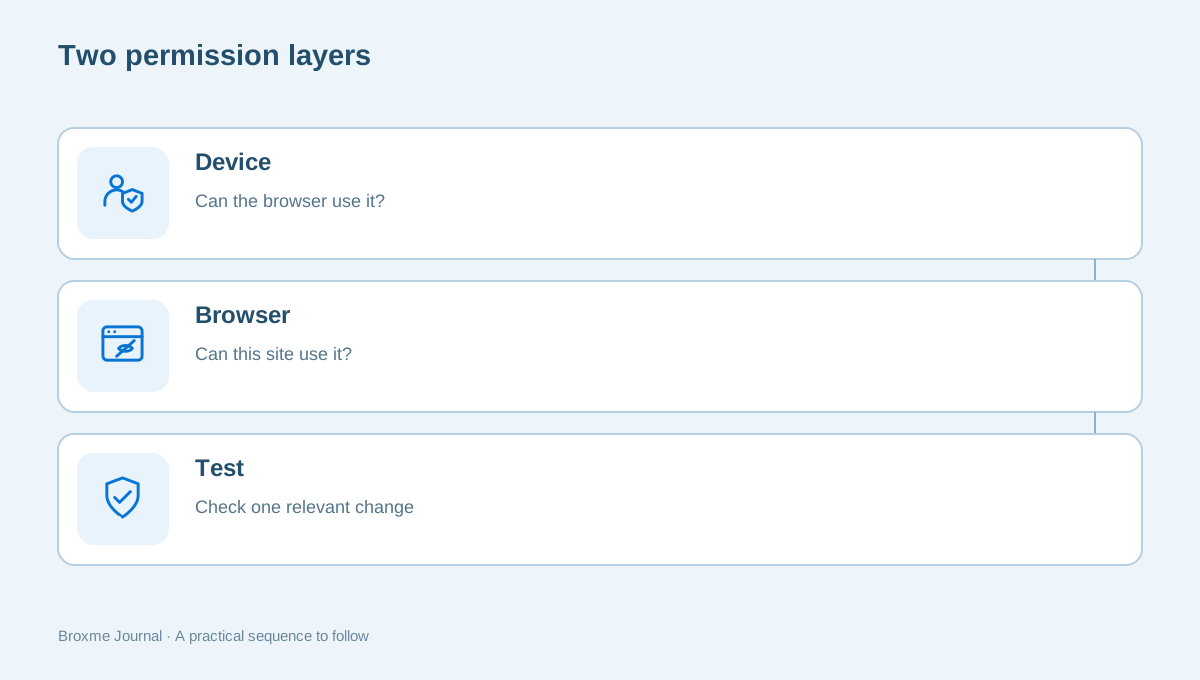
A camera problem can involve more than the website’s permission. The operating system may restrict the browser, a different camera may be selected, or the application may be controlled by an organization. Distinguish the visible symptom from your first explanation of it. “No audio reaches the meeting” is a better starting note than “privacy settings broke the call.”
Mozilla’s camera and microphone guidance helps Firefox users find the relevant browser controls. When testing, adjust one relevant setting, repeat the task, and restore changes that do not help. A working feature is easier to maintain when you know which setting made the difference.
If you are helping someone else, ask them to show the task as they normally perform it. Explain what you propose to change and why. Avoid turning their computer into a troubleshooting experiment that leaves extra access behind simply because nobody recorded the original settings.
Ask what location access adds to the task
A location request may help find a nearby store, show local information, or support a particular service. Ask whether you want that convenience for this visit and whether another method is available. Typing a ZIP code may fit some tasks better than granting a broader location request, but the right choice depends on the feature you are using.
Be careful about treating location as a single privacy question. A browser prompt concerns a specific permission. You may also reveal location through a public profile, a photo caption, an address submitted for delivery, or information associated with an account. Review those separately instead of assuming the browser control governs everything.
For example, someone in North Carolina looking for a local repair shop might prefer to search by town rather than share a location through the browser. Someone using a map feature may make a different choice. Neither needs to imitate another person’s settings; the useful standard is understanding what the particular task requires.
Notifications should earn their place
Notifications are often accepted because the prompt appears while you are trying to do something else. Review the allowed list and remove sites whose messages are no longer useful. You can make that decision without closing the account or deciding whether you will ever visit the website again.
Mozilla’s explanation of push notifications describes how the feature is managed in Firefox. For your own review, focus on which sources you actually want interrupting you. A notification’s familiar logo should not become a reason to act on an urgent request without checking it.
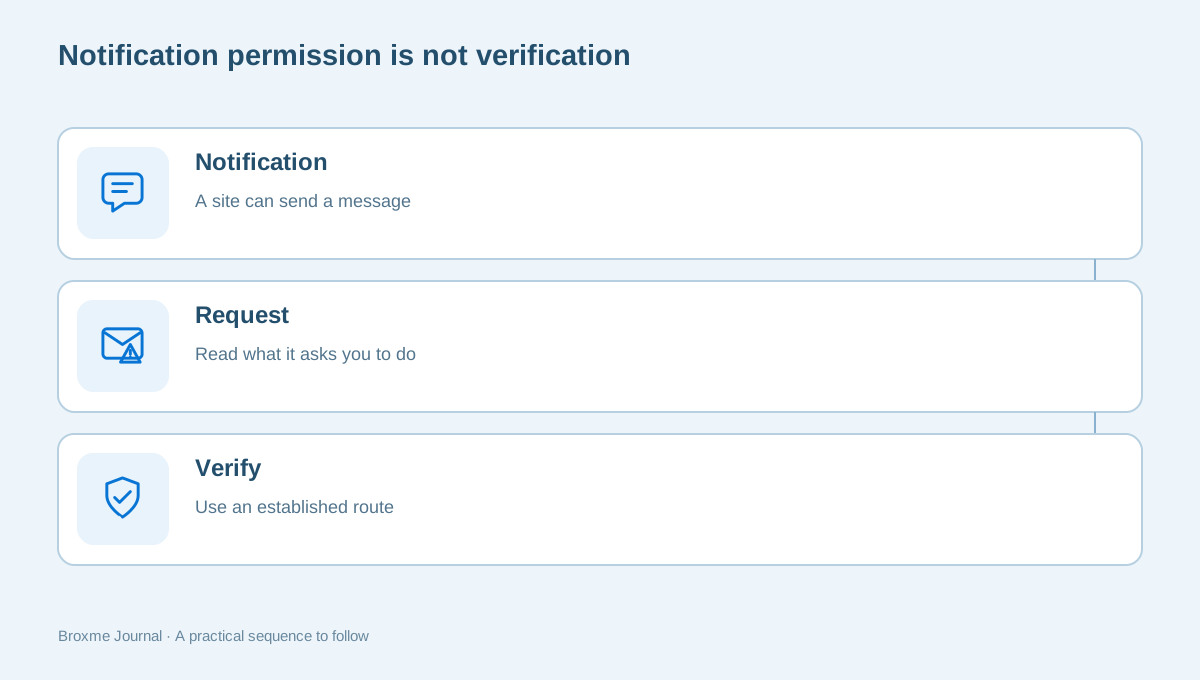
If a notification directs you toward an unexpected payment, password request, or support phone number, use the unexpected-message checklist. Notification permission is not a verification system for the contents of the message. Open the service through a route you already trust when the request matters.
Keep exceptions narrow and understandable
Some sites need a feature that your usual setup restricts. That can be a reasonable exception if you understand the purpose and scope. Avoid granting broad access to unrelated sites merely because one feature fails. A narrower decision is easier to revisit when the service is no longer needed.
Write down the reason for an exception. “Microphone for weekly training” tells you something useful later. “Allowed because it worked” does not explain which task justified the change. If you cannot describe the reason clearly, more investigation may be appropriate before treating the setting as permanent.
Cookie controls can create a separate class of exceptions, particularly around sign-in flows or embedded content. Review cookies and tracking choices if that is the issue you are addressing. A camera permission should not become a catch-all response to a problem caused by another type of setting.
Extensions are another permission relationship
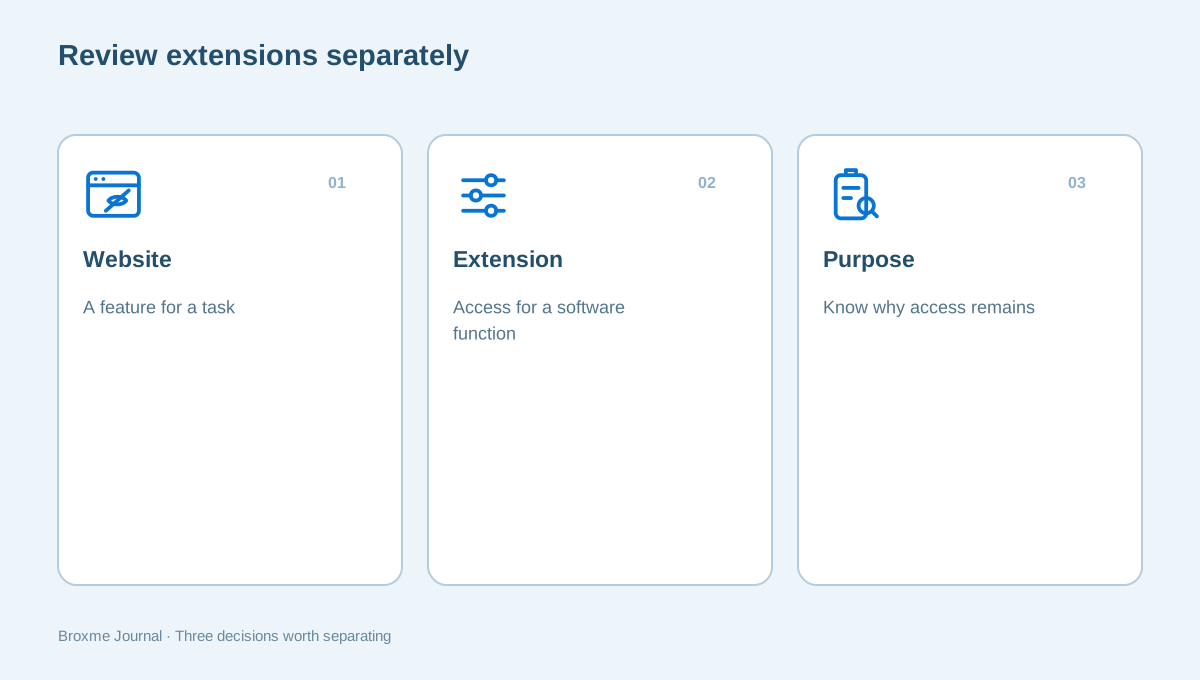
A website permission and an extension permission are not interchangeable. A website asks for a feature while you use it; an extension can request access related to its function across sites. Review installed tools separately and understand the authority granted to each one.
Use the extension permissions guide to examine publisher details, purpose, and site access. Remove tools left over from tasks you no longer perform. If you use several tools with overlapping functions, consider whether you can still explain which one controls a particular behavior.
If your browser privacy goals go beyond a short maintenance session, a tracking and exposure protection review can help organize the work. Bring the sites that matter to you and the features that must keep working. Practical privacy depends on that context, not on copying an extreme configuration from a discussion thread.
A practical review of a family appointment setup
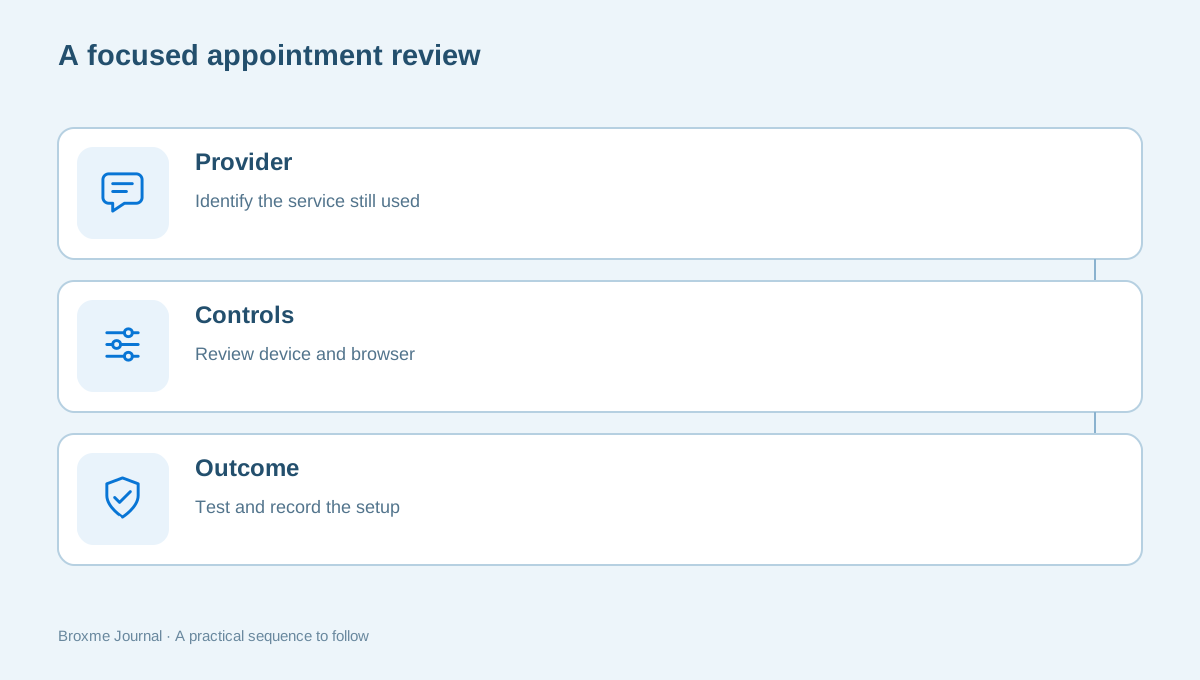
Imagine a family in Michigan sharing a laptop for occasional video appointments. The browser has permissions for three providers, but only one is still used. Begin by identifying the current provider and the family member who relies on it. Confirm the appointment route and the browser in use before editing the permission list.
Remove the obsolete entries only after checking that they are genuinely no longer needed. Test the current provider through its supported test process or at a suitable time. Note the camera and microphone selections if the service offers them. Keep the test focused; do not submit private health information merely to prove that a general browser feature works.
If the microphone remains unavailable, check the relevant device control and the browser permission independently. Record the result of one change before making another. That approach avoids a common outcome: the appointment finally works, but location, notifications, and several unrelated settings have all been allowed without anyone remembering why.
Finish with a plain-language note for the person using the laptop. Name the provider, the required features, and the support route. Keep passwords and appointment details out of the note. The successful result is not the strictest possible browser; it is a setup whose access choices serve the family’s actual needs.
Keep the review small enough to repeat
Choose a useful stopping point: one permission category, a few unfamiliar sites, or the access related to a particular service. Complete that review and test what matters. Leave other categories for another session instead of making so many changes that you lose the ability to explain the result.
Pair the work with sensible account maintenance. The browser’s camera choices do not secure your main email account, and they do not remove information from a public profile. Keep those tasks distinct so your privacy routine covers the concerns you actually have.
Revisit permissions when a service ends, a device changes hands, or a new work arrangement replaces an old one. Ask what each entry is doing for you now. A browser with understandable access choices is easier to use and easier to maintain than one shaped by years of forgotten prompts.
Make the review easier by choosing a handful of real questions. Does the map site still need location for the way you use it? Is the meeting service the one your provider currently supports? Is the notification source sending something you value? Answering those questions leaves a meaningful record. A count of permissions removed tells you much less, because an entry may be useful, obsolete, or misunderstood.
When a service changes domains or replaces its meeting platform, do not assume the old permission should transfer automatically. Follow the provider’s current instructions and read the address you are visiting. An existing relationship with an organization does not make every similarly named website its official service. If the new request arrives unexpectedly, confirm it through a known contact route before approving access.
Keep a short list of permissions you decided to investigate later. Include the feature and why you were uncertain, but leave private account details out. That lets you ask an administrator or support team a precise question without recreating the entire browsing session. It also provides a stopping point: you can finish the safe, understood changes today without forcing a decision about every unfamiliar entry.
If you are reviewing a device before passing it to another person, a permission cleanup is not the whole handoff. Follow the device and account providers’ instructions for preparing it for a new owner. Saved accounts, synchronization, local files, and sign-in methods deserve their own plan. Do not treat removing camera permissions as proof that all personal data has been removed from the computer.
Finally, avoid interpreting an old permission as proof that someone has been recording you. A settings list establishes an access decision, not a complete history of how it was used. If you have a concrete concern, record the facts and seek relevant help. Maintenance and incident investigation are different activities, and clear language helps keep both useful.
Sources and further reading
Provider processes can change. Use the current instructions on the official website when making a request or changing an account.

About this guide
Published in the Broxme Journal for readers who want clear explanations of privacy and everyday online security. This guide provides general information; your circumstances determine the appropriate next step.
About Broxme