A private window can be useful when you do not want an ordinary browser session to remember a particular visit. The problem begins when the word “private” is asked to do more work than the feature actually does. It does not make every website forget you, erase information you submit, or turn an unfamiliar computer into a trusted one. Understanding those boundaries lets you use the feature for a real purpose instead of relying on its name.
Ask the question: private from whom?
Before opening a private window, identify the person or organization you want to limit information from. Is the concern another household member seeing local history? A retailer connecting activity with your signed-in account? Your employer’s managed device? Those are different situations. The browser feature may address part of one without resolving the others.
A useful sentence is, “I want this session to avoid leaving ordinary browser history on this device.” That is more specific than “I want nobody to know.” If your goal involves a public profile or information already posted on a website, use a digital footprint review instead of expecting a private window to change existing content.
Also consider the consequence if your assumption is wrong. A low-stakes gift search on a personal laptop is different from a sensitive task on a computer you do not control. The feature’s convenience should not become a reason to skip the more basic question of whether the device and the situation are suitable.
Understand the local browser purpose
Private browsing modes generally limit certain records retained by the browser after the private session ends. The details vary by product and version, so read the explanation for the browser you use. Do not assume a feature on your phone behaves identically to one on a desktop computer.
Mozilla’s private browsing guidance explains the relevant Firefox behavior, including the distinction between browsing records and files you deliberately save. Keep the practical boundary in mind: the browser’s treatment of a session is not the same as a promise about every trace elsewhere on the device.
When using a shared household computer, close the private session when the task is finished and consider what you intentionally kept. A saved file, a printed page, or a message sent to an account has its own life. The absence of a familiar history entry should not be interpreted as evidence that no information remains anywhere.
Signing in still identifies an account
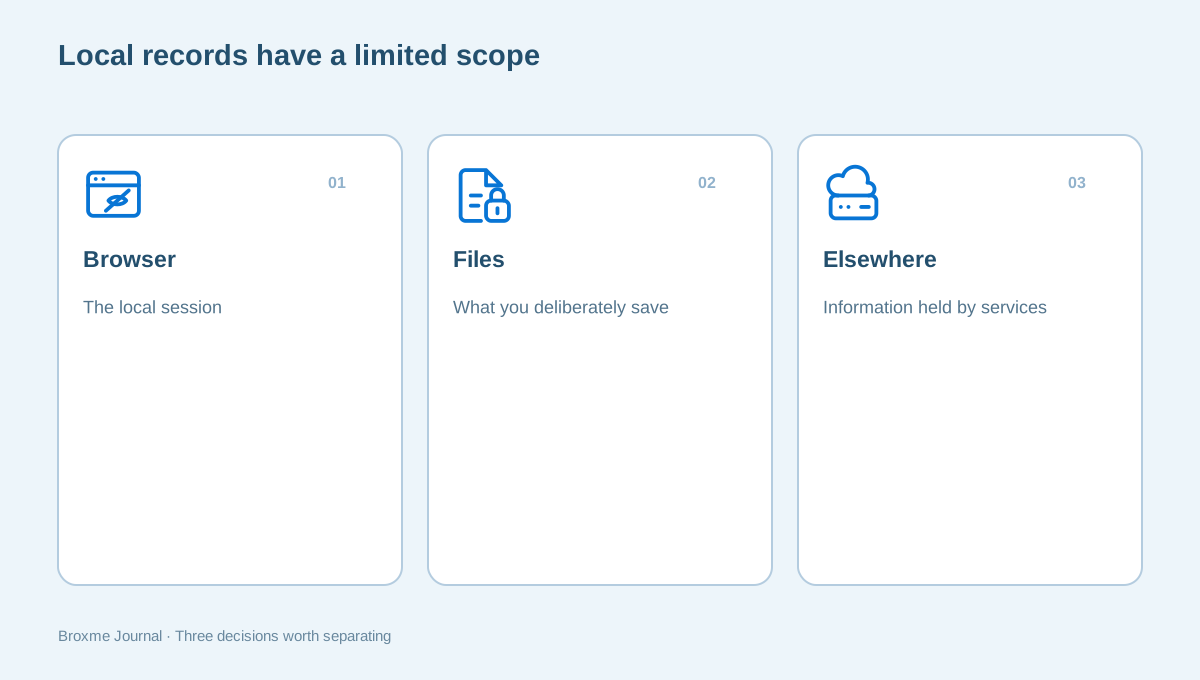
If you sign in to a retailer, email provider, or social platform, you are telling that service which account is using the session. A private window does not make an account transaction anonymous to the provider. Information you submit, purchases you make, and messages you send are actions in that service, not just records in your browser history.
This is why changing the window type does not replace reviewing your profile, preferences, and access settings. A private session can start without the usual local session state, but once you identify yourself to the service, the account relationship is still relevant. Use the provider’s current controls when the goal is to change account-held information.
For practical account work, start with the email account that connects everything. If you need help organizing sign-ins, the password manager first steps guide addresses a different problem: maintaining access without relying on remembered sessions. Those tasks belong alongside browser choices, not inside the promise of a private window.
Websites and networks remain part of the connection
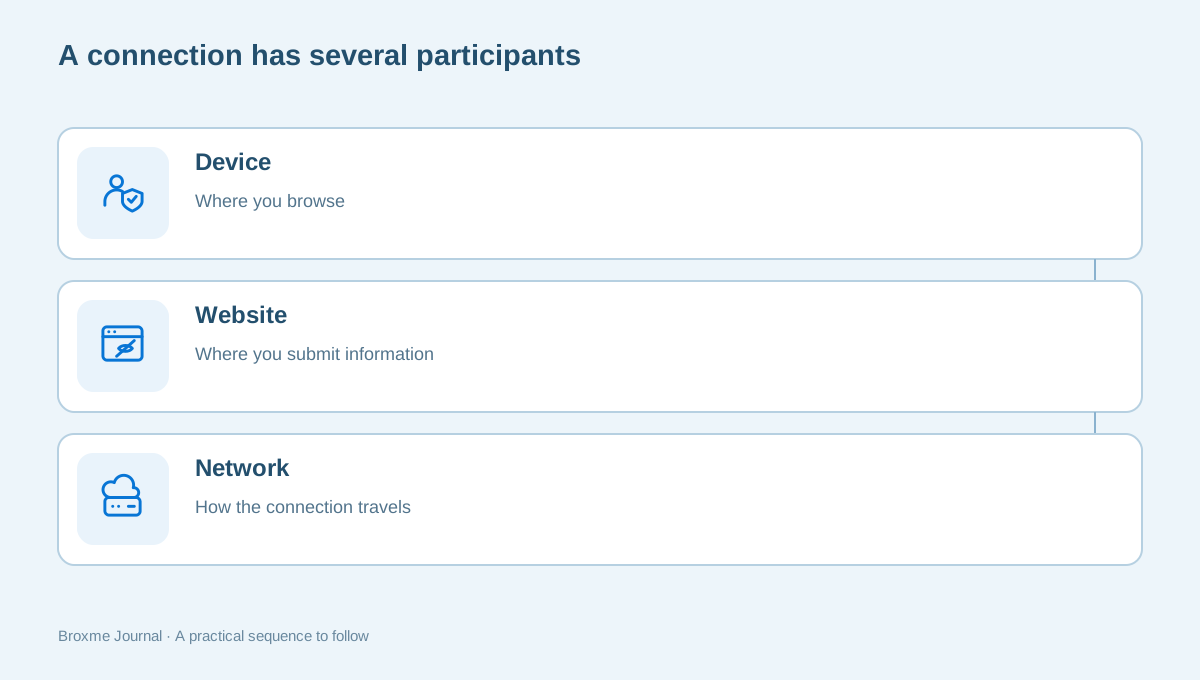
A website receives information necessary for the interaction you initiate, and networks remain involved in carrying the connection. Private browsing should not be treated as a promise that every organization along that path is unable to observe anything about the activity. Define the concern before choosing an additional tool or changing a setting.
Google’s Incognito explanation describes the feature’s boundaries for Chrome users. The important distinction is between limiting local browser records and hiding an activity from everyone. If the latter is your assumption, pause and revisit the task rather than relying on a different window color.
On a workplace or school network, follow the organization’s policies and support guidance. A private window does not create an exemption from device management or acceptable-use rules. If you need personal separation, consider the appropriate device and account context instead of trying to turn a browser feature into a workaround.
Files and submissions need their own decisions
If you download a statement, save a photo, export records, or print a page, decide where that information will remain. A private session is not a file disposal plan. Sensitive documents can be easier to expose through an ordinary downloads folder than through the browsing history you were focused on hiding.
Before starting a task, know whether you will need to keep a document. Use a location that fits the device and the information involved, and avoid unnecessary copies. If the computer belongs to someone else, think carefully before saving anything that contains personal details. Closing the window cannot substitute for knowing where a file went.
For work documents, access and sharing are separate issues too. Read who can open a shared document when your concern is the audience of a file or link. A browser mode does not change the permissions attached to a document held in an online account.
Check the instructions for the browser in front of you
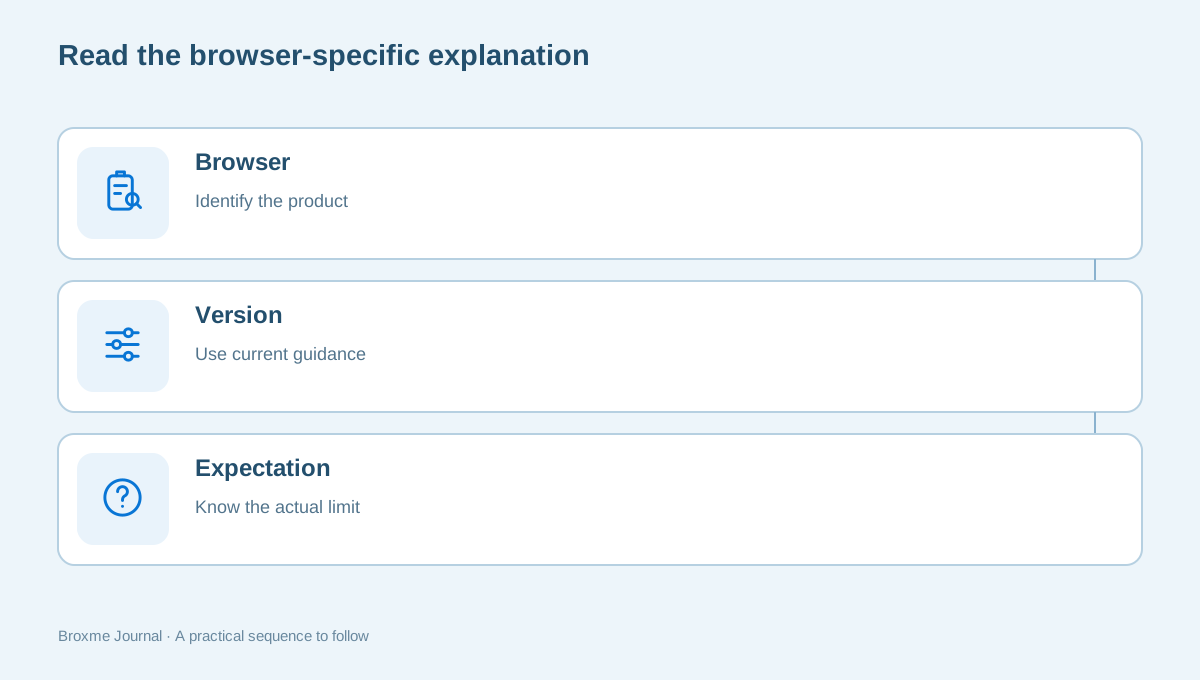
Similar names can hide different details. Features may change between versions, and a mobile browser may organize settings differently from a desktop browser. Read the official explanation instead of memorizing a shortcut and assuming it expresses the whole privacy policy of the product.
Microsoft’s InPrivate guidance is the reference for Edge. For Safari, use Apple’s private browsing guide for the version and device you use. These references help you understand a feature; they are not interchangeable guarantees across all browsers.
When helping someone else, ask which browser and profile they actually use. A symbol you recognize on your own computer may not be the same control on theirs. Explain the intended outcome in ordinary language, then confirm that the person can recognize when the session is private and when it has ended.
Keep tracking choices separate from the window type
Private browsing can interact with cookie and tracking behavior, but it is not a substitute for understanding your normal browser setup. If your everyday concern is unwanted tracking, review the controls you use outside private sessions as well. Otherwise, a useful habit may exist only in the occasional window while your ordinary choices remain unexplained.
The cookies and trackers guide helps separate remembered preferences, site relationships, and advertising choices. Use it to decide what to change rather than treating every privacy feature as another way to do the same thing. Different controls address different parts of the browsing experience.
Extensions need their own review. A tool may have different behavior or availability in a private session, depending on the browser and its permissions. Check the current details for the tool you use. Our extension review starts with the purpose and access of each installed item instead of assuming that private mode neutralizes every extension concern.
Be cautious on computers you do not control
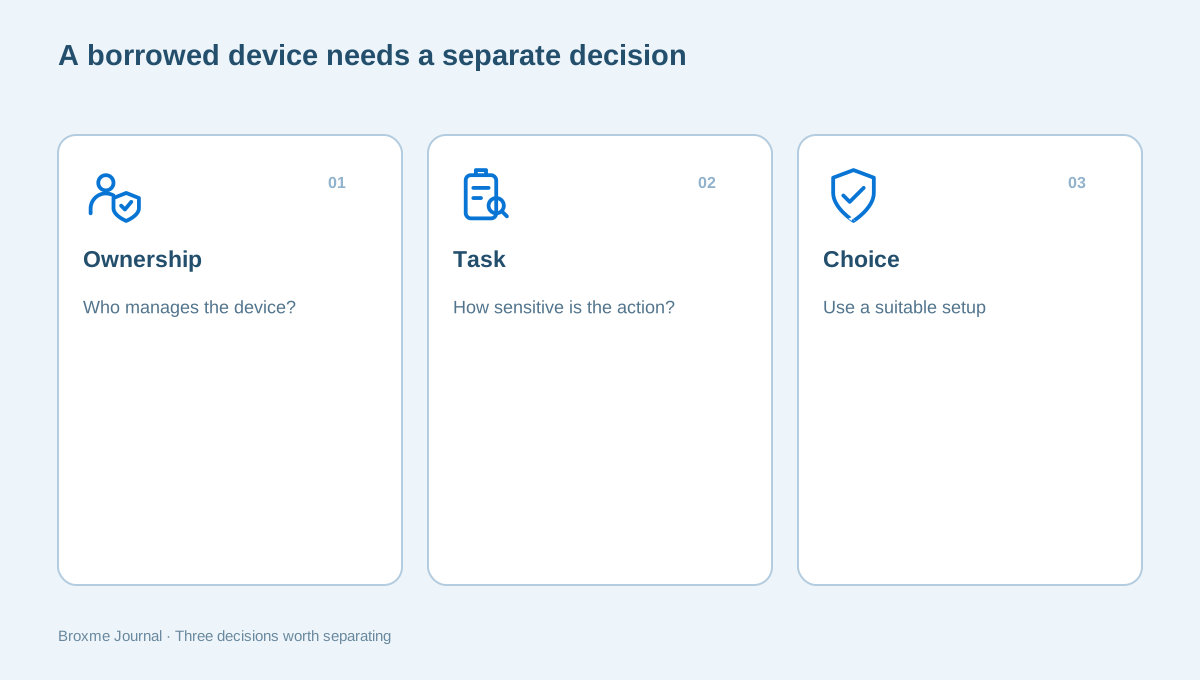
A private window does not establish that a borrowed or public computer is trustworthy. You may not know how it is managed, what software is installed, or who can access it. For sensitive account actions, consider whether using your own appropriate device is a better choice than relying on a temporary browser session.
If you use a shared device for a routine task, avoid saving credentials, leaving downloaded records, or assuming the next person cannot see an open window. Finish the task deliberately and follow the device owner’s instructions. Do not experiment with security settings on a computer you are not authorized to administer.
This is particularly relevant when a person is traveling, using a hotel business center, or borrowing a relative’s laptop. The convenient device is not always the right device for every action. A privacy feature can reduce a specific local record, but it should not be asked to answer questions about the trustworthiness of the entire machine.
A simple example: planning a surprise without false expectations
Imagine someone in Oregon researching a birthday gift on a personal household laptop. They want the ordinary browser history to be less likely to spoil the surprise. A private session may fit that narrow purpose, provided they understand its limits and finish the session deliberately.
Now add the practical details. Signing in to a shopping account can associate activity with that account. An emailed receipt can appear in the inbox. A downloaded image can remain in the downloads folder. A shared shopping list can be visible to other family members. None of those relationships disappears just because the initial search used a private window.
The useful plan is not to demand complete invisibility. It is to decide where the surprise could be revealed and use appropriate account and device choices for that ordinary task. The example also shows why privacy advice should begin with a real objective. A clear objective exposes the places where the feature helps and the places where another decision is needed.
For a more serious situation, do not stretch this example into a safety plan. Threats, coercion, or unwanted monitoring can require more careful support than routine browsing advice. Changing a visible habit may itself have consequences in some circumstances. A general article cannot establish the right response for every person or device.
Use a private window as a tool, not a verdict
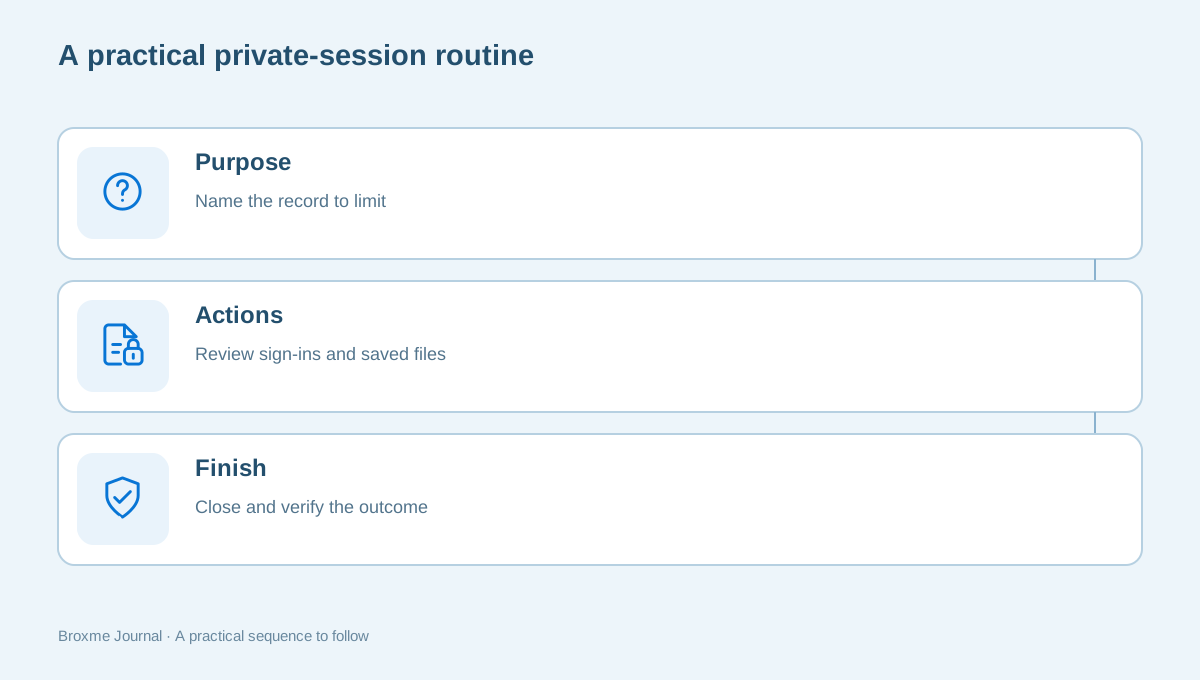
Build the feature into a routine you can explain. State the purpose, use the appropriate device, check whether you signed in, and think about any files or submissions involved. When the task is complete, close the session and handle the information you intentionally kept.
If your ordinary settings have accumulated years of permissions, use the browser privacy tune-up. If a site still has camera or location access you no longer need, review website permissions. Those are concrete tasks you can complete without treating every private browsing session as a full audit.
For a more tailored review, tracking and exposure protection can focus on the browsers and services you actually use. Describe what you want to understand and what must keep working. Avoid asking for a blanket promise of anonymity that no ordinary browser setting can supply.
Keep one question in mind
Before relying on private browsing, ask: “Which record or relationship do I expect this feature to change?” If you can answer that specifically, you are more likely to choose the right tool. If the answer is “everything,” stop and separate the task into smaller privacy questions.
You may need a local-history choice, an account privacy change, a file-handling decision, or a different device. Sometimes the right action is to wait until you can use a setup you understand. An inconvenience is preferable to making a sensitive decision on the strength of a feature name.
A practical way to test your understanding is to describe the task without using the word private. “I do not want this visit in the browser’s normal history” describes a browser-record goal. “I do not want the retailer to know which account placed the order” describes an account-identification goal. “I do not want a document left on this computer” describes a file-handling goal. Different wording exposes the fact that these are different decisions.
Keep the explanation equally clear when you help someone else. Do not promise that a window hides everything simply because that is easier to say. Explain what you expect it to change, what you have not checked, and where the browser’s current guidance applies. If the person is about to use an unfamiliar machine for a sensitive task, the most useful assistance may be finding a more suitable device rather than teaching a keyboard shortcut.
You can also make a short checklist for recurring tasks. Name the intended service, whether an account sign-in is needed, whether a file will be saved, and how the session ends. Keep the checklist free of passwords and private account details. Its purpose is to preserve an understanding of the workflow, not create another sensitive record. That small effort makes the next use of the feature more deliberate.
Finally, distinguish a privacy preference from an evidence claim. Not seeing an item in ordinary browser history does not prove that no service received information or that no file was created. A visible outcome establishes only what you checked. Keeping that distinction in mind helps you avoid both overconfidence and unnecessary alarm when a feature behaves differently from what its name first suggested.
Private browsing is useful when used within its boundaries. Understanding those boundaries does not make the feature pointless; it makes your expectations more realistic. Use it for the part of the problem it addresses, and give the rest of your digital life the separate attention it deserves.
Sources and further reading
Provider processes can change. Use the current instructions on the official website when making a request or changing an account.

About this guide
Published in the Broxme Journal for readers who want clear explanations of privacy and everyday online security. This guide provides general information; your circumstances determine the appropriate next step.
About Broxme